Mipony FAQ & manual

A first Astro migration of the current Mipony manual with direct downloads, Bittorrents, browser workflow and frequently asked questions.

How download Direct Downloads

Mipony is simple and, at the same time, it offers many options. For your first steps with the program you can follow these instructions.

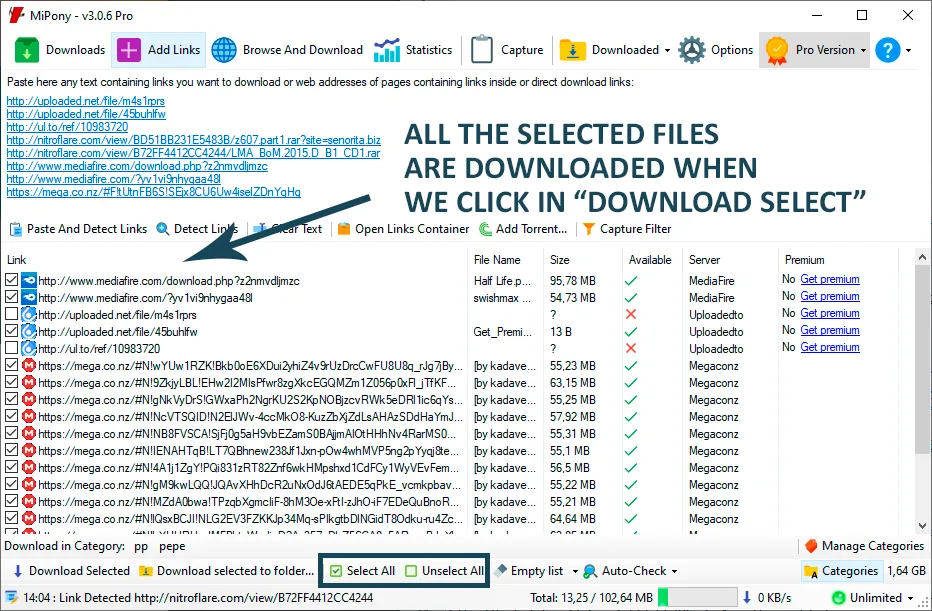
  1. Copy the text that contains the links or the web address where the files are.
  2. Paste the text in Add links and click on Paste and detect links. If capture is active, this step is not necessary.
  3. When the links are available they are checked automatically for download. Then click Download selected.
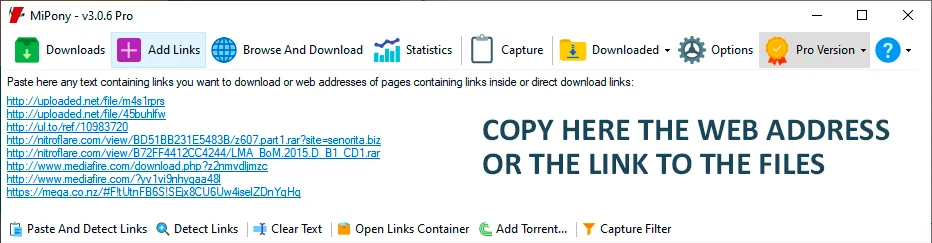
Copy direct download links or the full webpage address.
Paste links in the Add links window and let Mipony detect them.

How download Bittorents

Once you find the files you want to download, you can click directly on the magnet link and configure the torrent parameters.

  1. Open the magnet link or torrent and choose the download folder in the add torrent window.
  2. Accept the dialog to add the torrent to the Download screen.
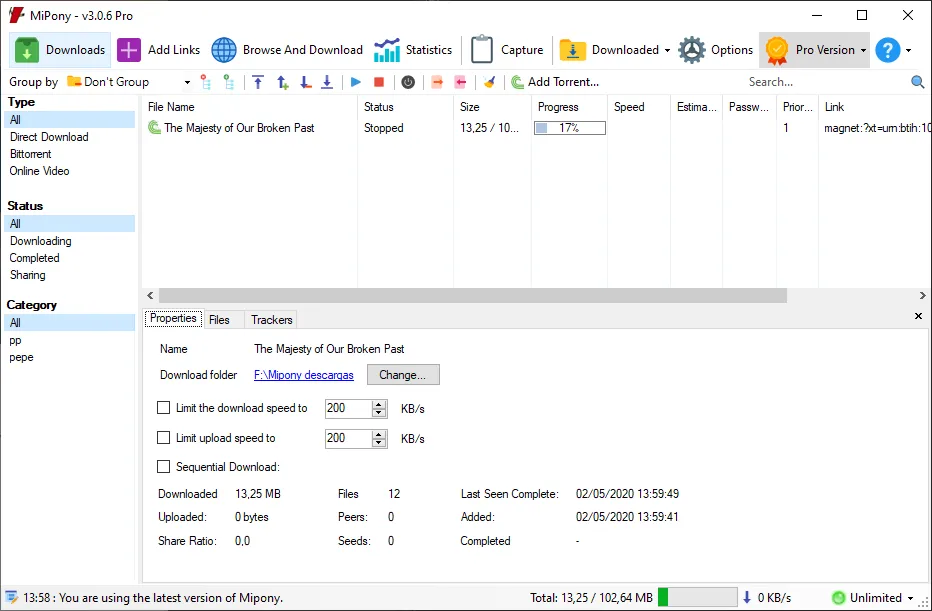
  3. Check progress from the Downloads screen and double click an item to open its parameters.
Add the torrent and confirm where you want to save it.
Review the torrent status and parameters from the downloads list.

How download Youtube and Vimeo video

Mipony recognizes Youtube links. You only need to copy the link and detect it from the Add downloads screen.

  1. Copy the Youtube or Vimeo link and detect it from the Add downloads screen.
  2. Keep the green checked items selected, then click Download selected.
  3. Choose the quality when the window opens and the video will be added to the Downloads screen.
Detect Youtube links and keep only the files you want.
Choose quality and send the video to the downloads list.

Browser

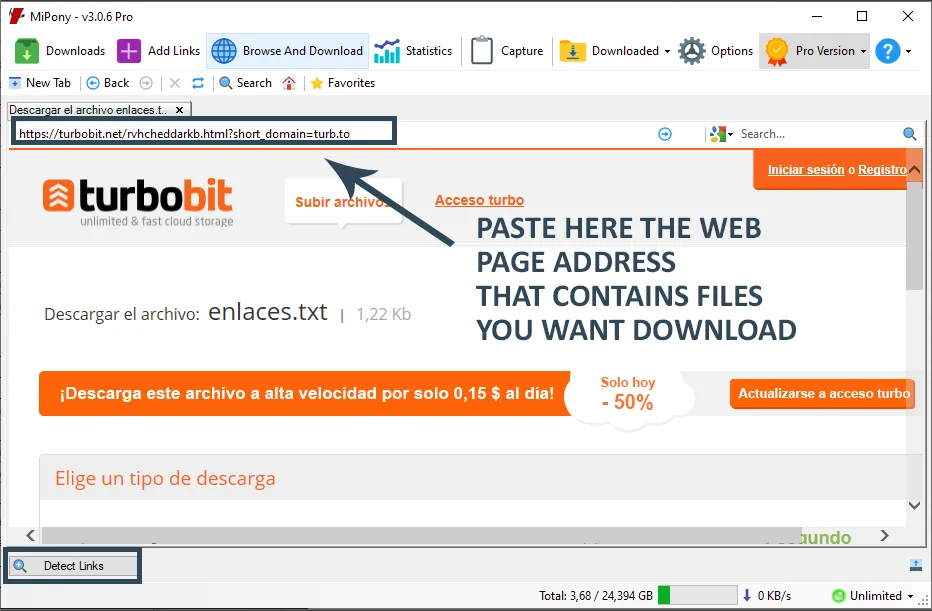
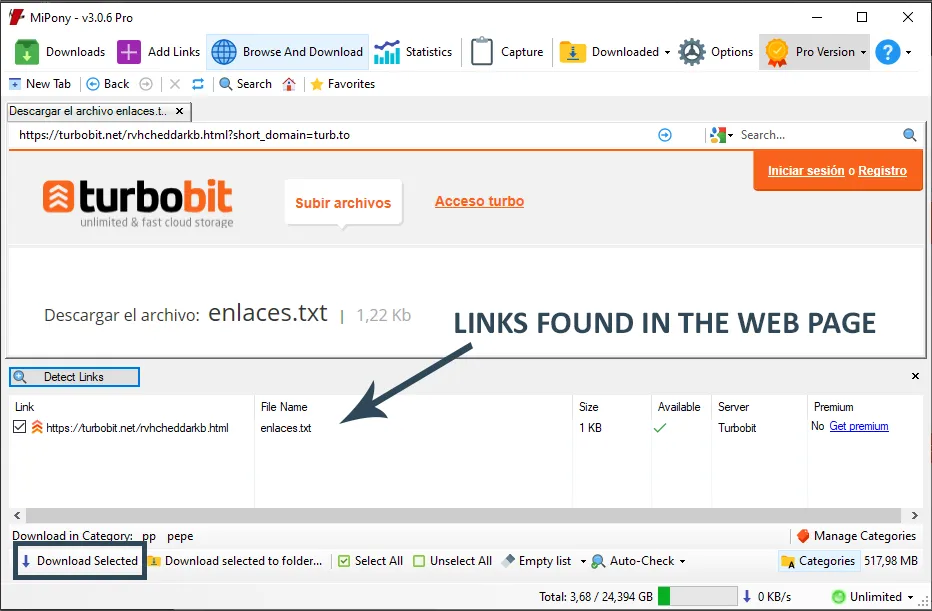
Through the Browse and download screen you can navigate easily over the Internet or paste the address of the website from where you want to download the files.

  1. Open the internal browser and navigate to the page that hosts the files.
  2. Click Detect links so Mipony searches all downloadable links on that page.
  3. Select the files you want and click Download selected.
Use the internal browser to visit the page that contains the file links.
Detect links and start the selected downloads from the same flow.
FAQ

Current frequently asked questions

Why does Mipony ask me to insert text (captcha) to start the download?

“CAPTCHA is a type of challenge-response test used in computing to ensure that the response is not generated by a computer. The process usually involves one computer (a server) asking a user to complete a simple test which the computer is able to generate and grade. Because other computers are unable to solve the captcha, any user entering a correct solution is presumed to be human. A common type of captcha requires that the user type letters or digits from a distorted image that appears on the screen” (Wikipedia definition).

Mipony can solve the captcha by itself, but sometimes it isn’t possible because the servers make it complicated, so it’s necessary that you decipher the captcha to continue.

To avoid captchas you can buy Premium accounts of the servers you want or install the plugins that Mipony has published.

Example of a captcha Mipony may ask you to solve
I want to download the file from a website and the program does not recognize it.

The program supports a wide range of file servers; however, it is always possible that you may want to download a file that is not supported. In the “Help” menu, through the “Send us failures and suggestions” option, you can send us the link you want to download so that we can add support for that server in the next program update.

Why are files downloaded one at a time?

Mipony allows the simultaneous download of any number of files (changeable in Options); however, some websites stipulate that if you don’t have a Premium account, downloads will be done one at a time, and that there must also be a delay between each file that Mipony must respect. The only solution to this limit is to sign up for a premium account.

Why do I have to wait for some downloads to begin?

Rapidgator, Uploaded, and other servers assign waiting times before and in between downloads, or some maximum limits of MB available for download per day. This limit is mandatory; however, the program optimizes these waiting periods to be as short as possible. The only way to avoid waiting times is having a premium account and configuring it in the Options window.

How can I upload link containers?

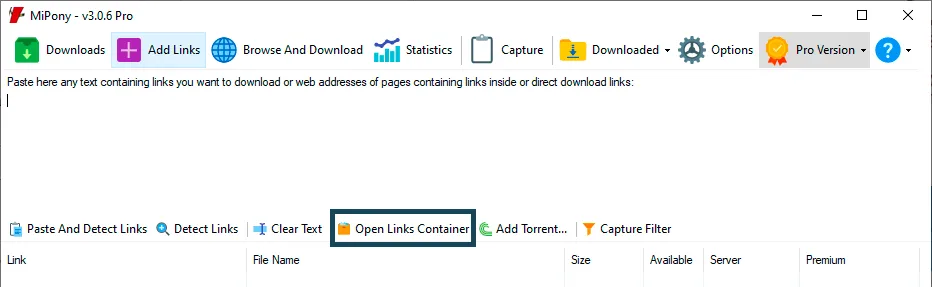
A link container is an encrypted file that has a list of links. To add the links of a container to the download links from the “Add links” screen, select the option “Open container” and then select the file.

Open links container from the Add links screen
Download files in defined folders.

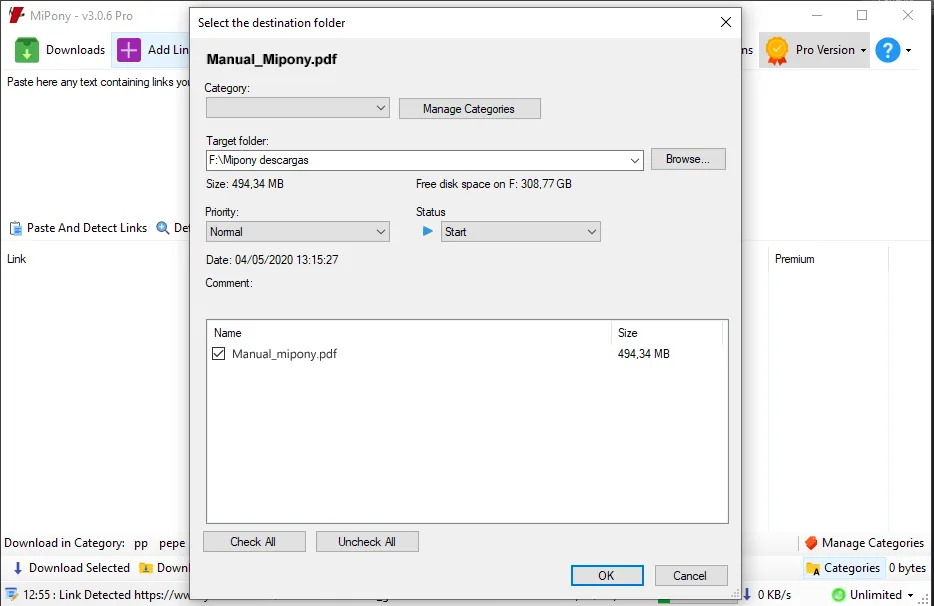
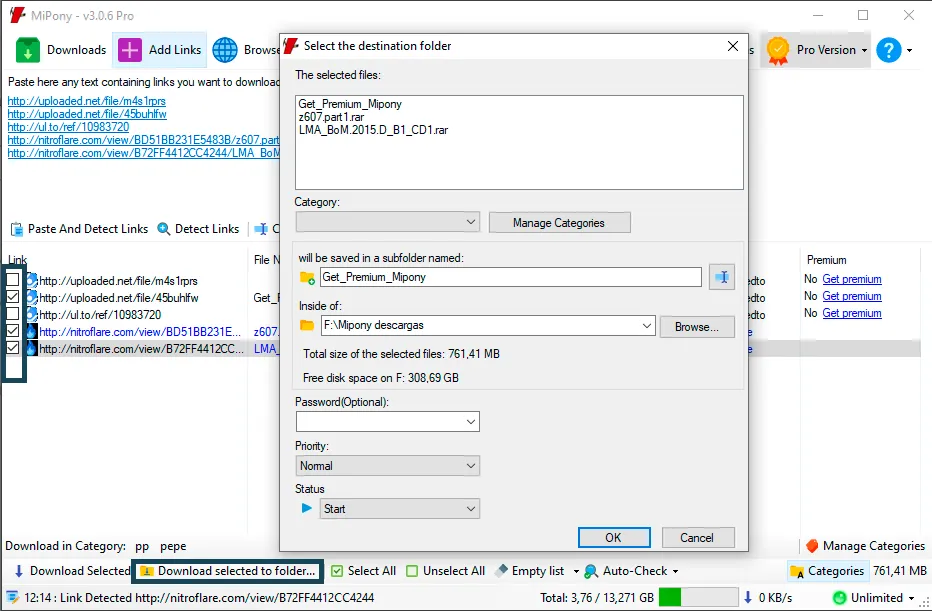
Downloads can be stored in different folders created by the user before they are downloaded to keep them more organized. Thus, a group of files can be selected in the “Add links” tab and, by clicking on “Download selections in folder”, you can choose a folder where they will be stored once the files are downloaded. This way we can keep downloads more organized.

Select the destination folder for the downloads
How do I extract files that I download automatically?

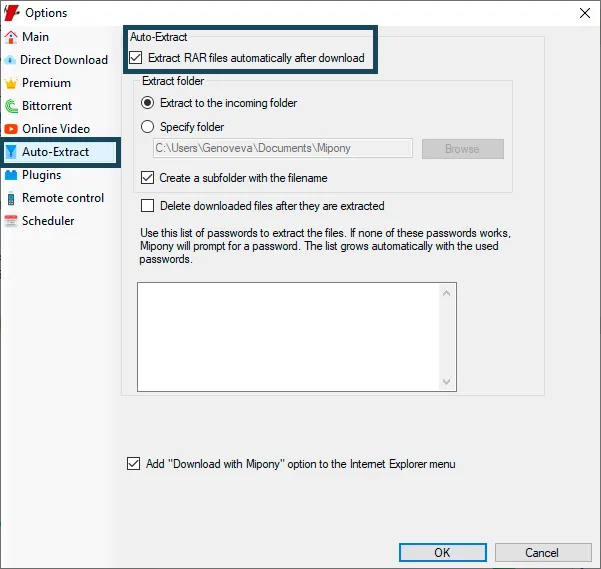
In the advanced options, Mipony gives the option to enable “Automatically extract rar files after downloading them”. Once this option is activated you can specify what folder the files will be stored in once they are extracted. To extract rar files after they are downloaded, a password is sometimes required. Mipony has compiled a list of passwords for extracting files that grows automatically with successfully used passwords.

If none of the stored passwords works, Mipony will request one. After requesting a password from the user, Mipony tests all the passwords on the list, so if you download a lot of files that have the same password, Mipony will only request it the first time.

Auto-extract option in Mipony advanced options
Can I use Mipony from the command line?

Mipony can add links from the command line; this is the syntax: Mipony.exe /url:[URL]

For example: MiPony.exe /url:http://www.mipony.net/help/MiPony-Manual.zip

You can also add downloads to Mipony directly from the command line; this is the syntax: Mipony.exe /download:[URL]

For example: MiPony.exe /download:http://www.mipony.net/help/MiPony-Manual.zip

How to control Mipony from another PC or a mobile phone.

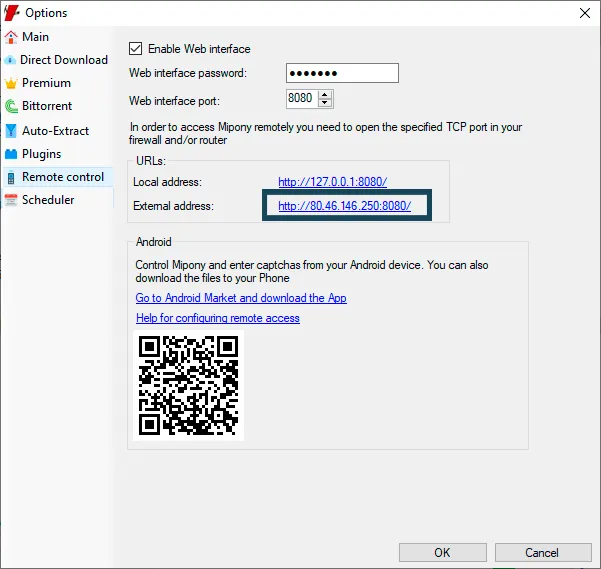
You can activate Mipony Remote Control from the Options window. In this window, first set the password that you will use to enter remotely. Then port 8080 is marked as the port for remote control. You have to open this port in your firewall or router. Once enabled, Windows may ask if you want to unlock access to Mipony; it must be accepted. If you don’t know how to open the port on your router you can look at this website where there are guides for most routers: http://portforward.com/

Once you’ve followed these steps, clicking on the “Local Address” you can check if it works from your computer, and in the “External Address” you’ll get the address that you must use to access from other computers or from your mobile phone. Write down this address and enter it in the other PC or mobile phone web browser (Firefox, Internet Explorer, Chrome) to access remotely.

Remote control option in Mipony options
How to control Mipony from a mobile phone with Android.

You can activate Mipony Remote Control from the Options window. In this window, first set the password that you will use to enter remotely. Then port 8080 is marked as the port for remote control. You have to open this port in your firewall or router. Once enabled, Windows may ask if you want to unlock access to Mipony; it must be accepted. If you don’t know how to open the port on your router you can look at this website where there are guides for most routers: http://portforward.com/

Once you’ve followed these steps, you can open the Mipony app and fill in the fields as we indicate. If you don’t have a fixed IP address we recommend using the DYNDNS service or some other similar service to get a fixed name for your variable IP address; in this case you can type the name (e.g.: myaddress.dyndns.org).

Remote control option in Mipony options